

Two shapes, one day
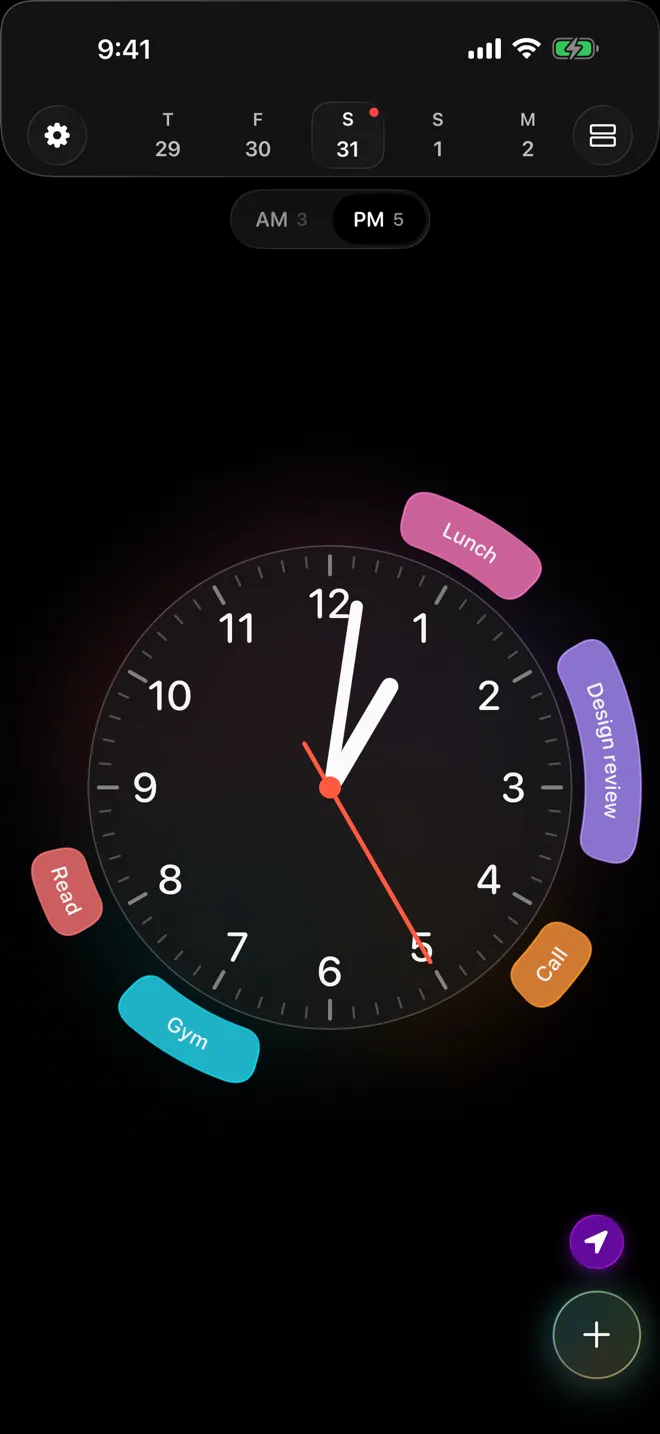
TaskCard keeps your day in one place and draws it in two ways. The hourly grid is the default: a 24-hour ruler with your cards sitting at their real start times. The day clock is the same data bent into a circle, with every task as an arc around a working clock face and the hands pointing at the hour it starts.
Nothing is duplicated and nothing is converted. Both layouts read the same tasks, so a card you drag on the grid has already moved on the dial. Switching is a single button in the top bar, and the cards physically fly between the two layouts rather than cutting — each band takes the shortest way round the face, so nothing spins through two full turns on its way to a task at 23:00.
Why a clock reads differently from a grid
A grid is a ruler: good for exact times, good for dragging a block from 14:00 to 15:30, and it shows you about six hours at a time on a phone. A clock is a proportion. The gap between two arcs is the gap in your afternoon, drawn at the size it actually is, and an empty quarter of the face is an empty quarter of the half-day — no scrolling and no arithmetic.
That makes the dial the better view for the question "how much room is left before dinner", and the grid the better view for "what exactly is at 11:30". Most people end up using both, which is why the switch sits where your thumb already is.
Morning and afternoon, one at a time
Twelve hours fit on a clock face; a day has twenty-four. TaskCard draws one half at a time rather than dimming the other, because 09:00 and 21:00 land on exactly the same angle and a faded arc reads as "unimportant", not as "evening". A capsule above the face carries your locale's own AM and PM symbols and the number of tasks in each half, so the half you are not looking at still announces that it holds something.
Tasks that overlap do not stack on top of each other either. The packer pushes each conflicting arc one lane further out, up to four lanes, and short tasks are widened to the minimum size a finger can actually hit while the real duration is kept underneath.
Editing on the dial
- Move: drag the arc around the face. Neighbouring arcs reflow into their lanes live, and nothing is written until you lift your finger.
- Resize: pull the end cap to change the duration, or the start cap to move the start while the end stays where it is.
- Complete: long press the arc. A drag cancels the press, so a task cannot be ticked off on its way to another hour.
- Open: tap for the full card — title, notes, colour, repeat rule, reminders.
- Across noon: drag an arc past twelve and the picker follows it to the half it landed in, instead of the task vanishing under your finger.
Eight faces
The case is drawing, not geometry: the dial inside is always a circle, so a time is the same angle on every face and the hands always point at the mark for their hour. Pick one in Settings under Clock Face. The choice is stored per device, so your iPhone and your iPad can wear different ones.
- Classic — The face the dial shipped with, and still the default.
- Rectangle — A rounded rectangular case around the same round dial. Bar markers, no numerals.
- Minimal — No plate. Four indices, eight dots, hairline hands.
- Bauhaus — Twelve blocks, the one at twelve wide and coloured, four heavy numerals.
- Roman — Roman numerals between two hairline rings, minute dots in the gap.
- Railway — The Swiss station clock: bar markers and a red second hand with a disc at its tip.
- Neon — A plate that stays dark in both appearances, a blurred glow ring, magenta hour marks.
- Ruler — Sixty marks of one weight, hours twice as long, a yellow second hand.
The screensaver
Long press the face and the clock takes the whole screen: the idle timer is disabled, the home indicator disappears, the dial drifts slowly in a four-minute ellipse to protect the display, and it dims after fifteen seconds of stillness. Settings can open it on its own after an idle stretch. On a desk stand it is a station clock that happens to know what you said you would be doing right now.
On the Home Screen
The Day Clock is also a widget, drawing the same arcs from today's plan in small, medium and large sizes, plus a circular Lock Screen size on iPhone and iPad and the desktop and Notification Center on Mac. One honest detail: WidgetKit hands out timeline entries about five minutes apart, so the widget's minute hand steps in five-minute jumps. The arcs are exact, and the hands sweep continuously inside the app and in the screensaver.
What it costs
Nothing. Both layouts, all 8 faces, the dragging and the screensaver are part of the free app, which covers up to 5 cards a day. TaskCard Pro lifts the daily limit and adds the widgets, the Day Clock among them. The free and Pro page lays out the split line by line.
Questions
How do I switch between the grid and the clock?
One round button in the top bar, next to the day strip. It appears at the day level, and tapping it flies every card off the grid and bends it into an arc on the dial. Tapping it again sends the arcs back. The choice is remembered per device, so your iPhone and your iPad can sit on different layouts.
A clock only has twelve hours. What about the other twelve?
The face draws one half of the day at a time, and a capsule above it names the half with your region's own AM and PM symbols, plus the number of tasks waiting in each. Two tasks twelve hours apart would otherwise land on exactly the same angle, which reads as a mistake rather than as evening.
Can I edit tasks on the clock, or only look at them?
You can edit. Drag an arc around the face to move the task, pull the end cap to change how long it runs, pull the start cap to move the start while the end stays put. Times snap to the same 30-minute slots the grid uses. Tap an arc to open it, long press to complete it.
Is the day clock part of the free app?
Yes. Both layouts, all 8 faces and the screensaver work on the free tier, which covers up to 5 cards a day. The Day Clock widget on the Home Screen, Lock Screen or Mac desktop is part of TaskCard Pro.
What is the screensaver?
A full-screen version of the same dial. Long press the clock face to open it, or turn on "Open the screensaver when idle" in Settings. It keeps the screen awake, drifts slowly to protect the display, and dims after a quiet stretch — a desk clock that happens to know your schedule.
Try it
The day clock is one button away from the grid on iPhone, iPad and Mac.